
Instructions for Installing the Plugin
- Download the plugin file from here (zip format) and save it to your computer.
- Log in to the Prestashop admin panel and go to the Module Manager page (Modules → Module Manager).
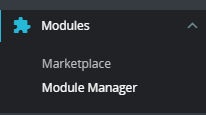
- Select Upload a Module and choose the zip file you downloaded.

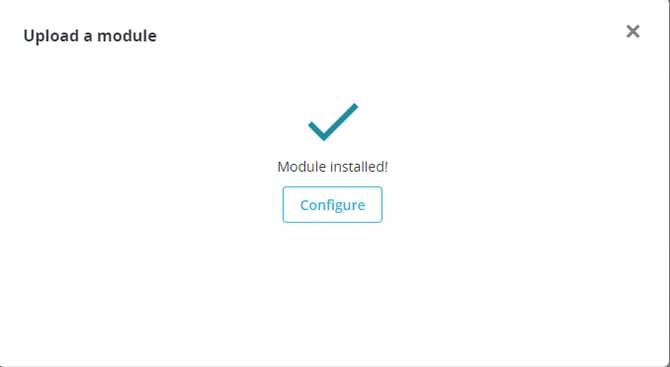
- Once the upload is complete, click Configure to go to the module settings page.
- Fill in the appropriate fields in the ACS Points Plugin (by aftersalespro.gr) section based on the functionality you want to enable.
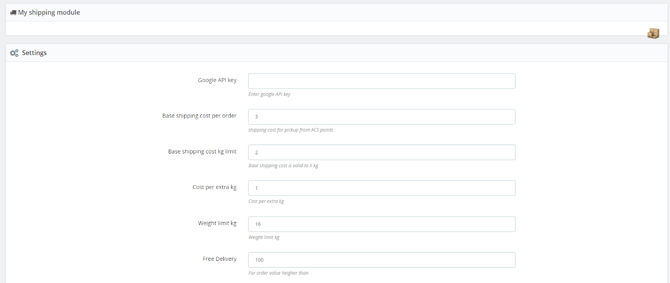
Explanation of ACS Points Plugin Settings
Map Provider
Select the map provider you want to use:
- Google Maps – Requires a Google Maps API Key.
- OpenStreetMap – Does not require an API Key.
Google Maps
If you select Google Maps, you will need to enter the Google Maps API Key required for the map to function properly.
Enter your Google Maps API Key in the relevant field. If you do not already have an API Key, you can follow the steps below to create one:
Steps to create a Maps API Key
When creating and configuring the API Key, you will need to enable the following APIs:
- Geocoding API
- Maps JavaScript API
OpenStreetMap
If you select OpenStreetMap, you do not need to create or enter an API Key.
Shipping Cost per Order (€)
Here you define the shipping cost for the customer if they choose this delivery method.
Weight Limit (kg)
The maximum volumetric weight supported by the service. We recommend that the value you set does not exceed 20kg.
Free Shipping (€)
The total order amount above which shipping fees are waived.
Additional shipping settings can be configured by going to Shipping → Carriers and editing the shipping method, just like with other Prestashop shipping methods.
Following these steps completes the installation and configuration of the plugin.
Plugin Functionality
Once the plugin is activated, the customer during checkout has an additional option for delivery and pickup of their order. The new option will appear as shown in the screenshot below (minor or major differences in appearance depend on the theme you are using).
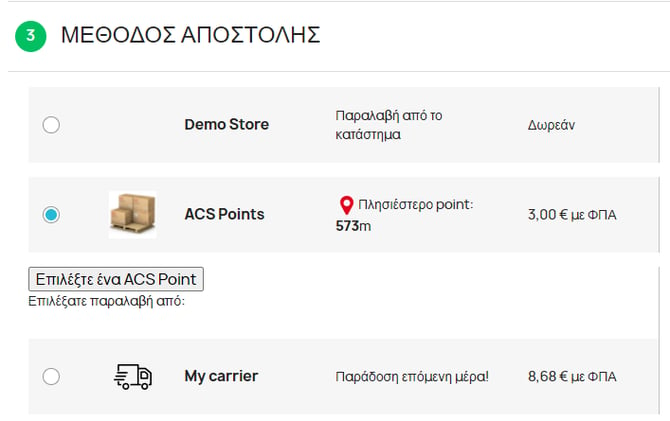
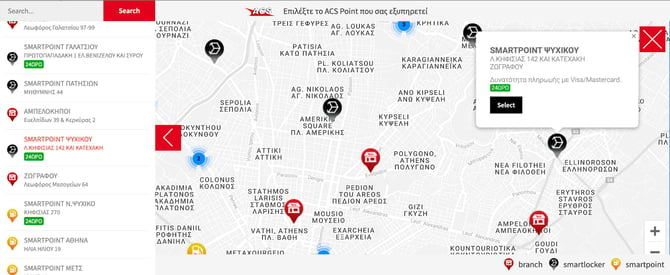
By selecting “ACS Points”, the customer can choose the ACS Point most convenient for them from a map showing all available locations.
The user’s selection is recorded in your admin panel and noted on the corresponding order as the chosen shipping method.
After installation, we recommend performing the following checks:
- Order with ACS Points selection: Ensure the order is successfully created and that the selected locker appears in the admin panel.
- Order with standard delivery: Confirm that the order is registered correctly in the admin system.
- Shipping cost calculation at checkout: Verify that shipping costs are calculated correctly for both the ACS Points method and standard delivery.
- Map display check: Ensure that available points (lockers) are displayed correctly on the map and can be selected by the user.
For plugin support, please contact us by filling out the technical support form you will find here.